
FREERADIUS WITH MIKROTIK – Part #1 > YOU ARE HERE
FREERADIUS WITH MIKROTIK – Part #2 >
FREERADIUS WITH MIKROTIK – Part #3
Personnel Note:
This is another post about freeradius. My aim is to let people know
that creating your own Radius Billing system is not ROCKET SCIENCE as
some PRO in the industry try to pose. You can do it as well, the only
thing required is the ultimate passion to achieve the goal. And with the
right search, reading, understanding logic’s, you can do all on your
own. I strongly encourage to read the FR mailing list and Google
Make your own Billing system in Linux with Freeradius 2.1.10 / MySQL 5.5.47
# Part-1
[This Guide will be updated with many further supporting posts)
The aim of writing this post was that there are number of radius
products available on the internet with lots of features, each have some
unique features. But this is also true that none of them is 100%
perfect for every type of ISP. The reason is that every ISP/Network have
different sort of local requirements and billing mode. If you ahve
searched on google you will find that there are tons of guides for
freeradius implementation, but most of them have either incomplete data ,
or difficult explanation, or does not meet the practical requirements
of Desi ISP. Thats why I started this guide so that info that is not
common on the net can be shared here. plus most important you can learn
on your own using this baby step.
In this post I have made some quick guide to install a very basic
level of billing system by using Freeradius/mysql on UBUNTU 12.4
[32bit]. Mikrotik is being used as NAS to connect user and freeradius
will be used for authentication/accounting billing system.
Quick Code to get started.
Radius IP = 101.11.11.245
Mikrotik IP = 101.11.11.255
Let’s Rock …
First Update Ubuntu (12.4 32bit) and install the required modules
1
2
3
4
5
6
7
8
|
# Update Ubuntu First
apt-get update
# Install Required pre requisites modules
apt-get -y install apache2 mc wget rcconf make gcc mysql-server mysql-client libmysqlclient15-dev libperl-dev curl php5 php5-mysql php5-cli php5-curl php5-mcrypt php5-gd php5-snmp php5-common php-pear php-db libapache2-mod-php5 php-mail
# Now install FreeRADIUS Version 2.1.10 package, default in Ubuntu 12.4 32bit
apt-get install freeradius freeradius-mysql freeradius-utils
|
This may take some moments as average of 100+MB will be downloaded
from the net and will be installed automatically. Sit back and relax.
After update/installation of components done, Proceed to MYSQL configuration below ..,
MYSQL CONFIGURATION:
Create Freeradius Database in MYSQL
Now create Freeradius Database in mySQL.
Login to mysql (use mysql root password that you entered in above steps)
1
2
3
|
mysql -uroot -pzaib1234
create database radius;
grant all on radius.* to radius@localhost identified by "zaib1234";
|
Import Freeradius Database Scheme in MYSQL ‘radius’ DB
Insert the freeradius database scheme using the following commands, Make sure to change the password ####
1
2
|
mysql -u root -pzaib1234 radius < /etc/freeradius/sql/mysql/schema.sql
mysql -u root -pzaib1234 radius < /etc/freeradius/sql/mysql/nas.sql
|
Create new user in MYSQL radius database (For Testing Users)
User id = zaib
Password = zaib
Rate-Limit = 1024k/1024k
1
2
3
4
5
|
mysql -uroot -pzaib1234
use radius;
INSERT INTO radcheck ( id , UserName , Attribute , op , Value ) VALUES ( NULL , 'zaib', 'user-password', '==', 'zaib');
INSERT INTO radreply (username, attribute, op, value) VALUES ('zaib', 'Mikrotik-Rate-Limit', '=', '1024k/1024k');
exit
|
Note:
You can skip the Framed-IP-Address part or modify it as per required.
FREERADIUS CONFIGURATION:
SQL.CONF
Edit following file
/etc/freeradius/sql.conf
1
|
nano /etc/freeradius/sql.conf file
|
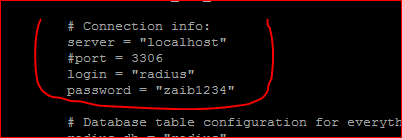
Change the password to zaib1234 (or whatever you set in mysql if required) and Uncomment the following
So some portion of the file may look like following, after modifications
1
2
3
4
5
6
|
# Connection info:
server = "localhost"
#port = 3306
login = "radius"
password = "zaib1234"
readclients = yes
|
 Save
Save and
Exit the file
/etc/freeradius/sites-enabled/default
Now edit the
/etc/freeradius/sites-enabled/default
1
|
nano /etc/freeradius/sites-enabled/default
|
Uncomment the sql option in the following sections
accounting
# See “Authorization Queries” in sql.conf
sql
session
# See “Authorization Queries” in sql.conf
sql
Post-Auth-Type
# See “Authorization Queries” in sql.conf
sql
[/sourcecode]
Save and Exit the file
RADIUSD.CONF
Now edit
/etc/freeradius/radiusd.conf file
1
|
nano /etc/freeradius/radiusd.conf
|
#Uncomment the following option
$INCLUDE sql.conf
Save and exit the file
/etc/freeradius/sites-available/default
Last but no least , edit
/etc/freeradius/sites-available/default
1
|
nano /etc/freeradius/sites-available/default
|
Search for LINE
# See “Authorization Queries” in sql.conf
and UN-COMMENT the SQL word below it.
Example After modification
# See “Authorization Queries” in sql.conf
sql
Save and exit.
ADDING ‘NAS’ [Mikrotik] in CLIENTS.CONF
To accept connectivity of Mikrotik with the Freeradius, we need to add the mikrotik IP and shared secret in clients.conf
Edit
/etc/freeradius/clients.conf
1
|
nano /etc/freeradius/clients.conf
|
and add following lines at bottom
1
2
3
|
client 101.11.11.255 {
secret = 12345
shortname = Mikrotik
|
Note: Change the IP /Secret according to your Mikrotik Network Scheme.
TESTING USER AUTHENTICATION ON FREERADIUS:
Now stop the free radius server <pre>
1
|
/etc/init.d/freeradius stop
|
and start in
DEBUG mode so that we can monitor for any errors etc
Now OPEN another
TERMINAL/CONSOLE window and issue following command to TEST USER AUTHENTICATION
1
|
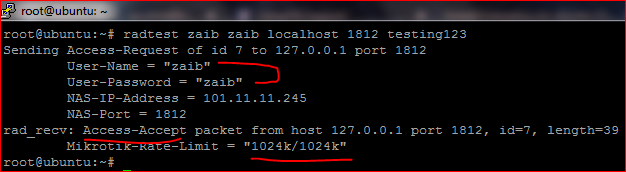
radtest zaib zaib localhost 1812 testing123
|
and you should
ACCESS-ACCEPT MESSAGE as below …
1
2
3
4
5
6
7
8
9
|
root@ubuntu:~# radtest zaib zaib localhost 1812 testing123
Sending Access-Request of id 38 to 127.0.0.1 port 1812
User-Name = "zaib"
User-Password = "zaib"
NAS-IP-Address = 101.11.11.245
NAS-Port = 1812
rad_recv: Access-Accept packet from host 127.0.0.1 port 1812, id=38, length=39
Mikrotik-Rate-Limit = "1024k/1024k"
|
:~) Alhamdolillah
MIKROTIK SECTION:
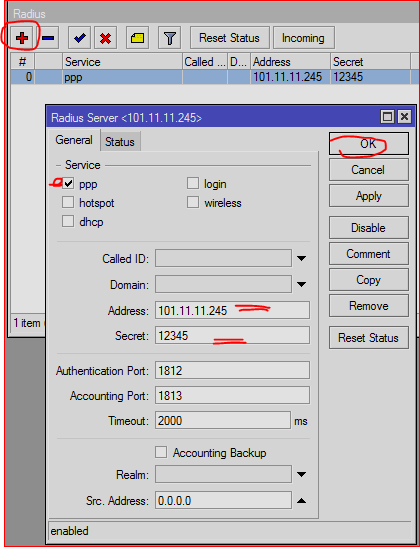
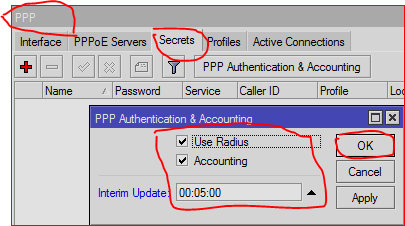
I assumed you already have pppoe server configured and running.
Add Radius Entry as showed in the images below …
TEST FROM CLIENT WINDOWS PC:
Create pppoe dialer at client end, and test the user ID created in earlier steps.
Once it will be connected, you can see entries in Mikrotik LOG / Active Users Session.
As showed in the image below …
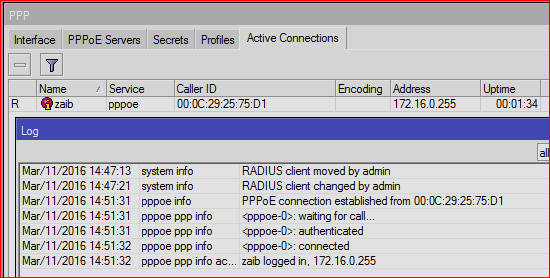
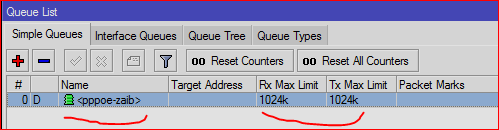
and dynamic queue of 1mb will also be created (that we added in attributes section in radius/mysql)
DISCONNECT Active USER : COMMAND FROM RADIUS
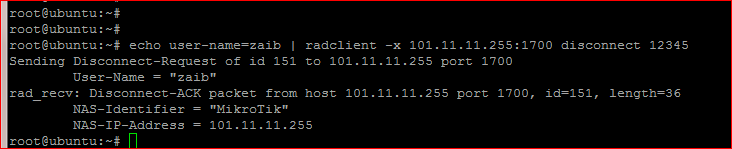
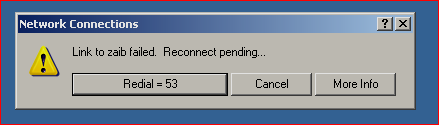
If you want to disconnect a single active connected user , use following command (many other methods available as well)
1
|
echo user-name=zaib | radclient -x 101.11.11.255:1700 disconnect 12345
|
Result

Preventing Simultaneous Use by using simultaneous-Use attribute
To LIMIT USER SIMULTANEOUS SESSION:
1
2
3
|
INSERT INTO `radcheck` (`id` ,`username` ,`attribute` ,`op` ,`value` )
VALUES (NULL , 'zaib', 'MD5-Password', ':=', MD5( 'zaib' ) ),
(NULL , 'zaib', 'Simultaneous-Use', ':=', '1');
|
Result of above attributes:

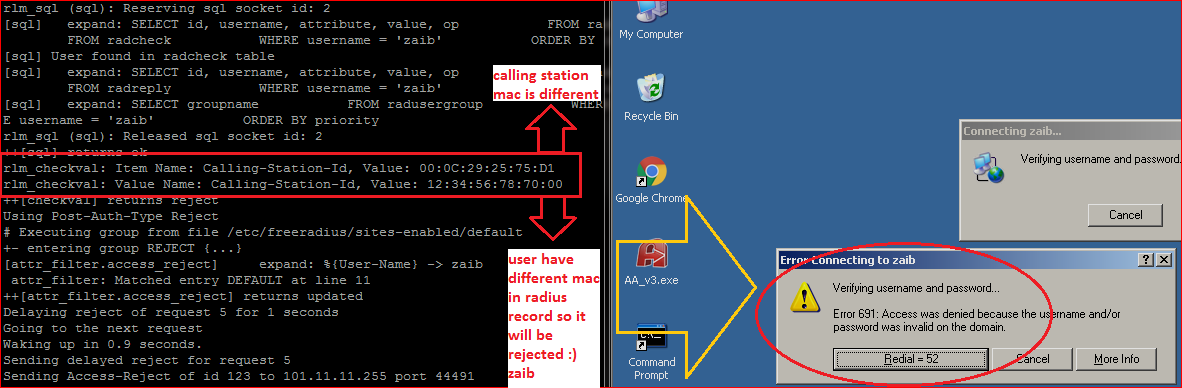
Add Calling-Station-Id attribute to restrict mac CALLED ID
If we want to restrict bind user name with specific mac address, first edit
nano /etc/freeradius/sites-enabled/default
and un comment following attribute “
checkval“, Example is below …
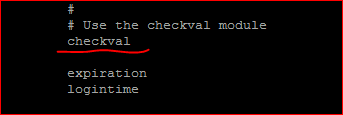
save and restart radius.
Now login to mysql , select radius database, and use below command to add user, with mac address.
1
2
3
4
|
INSERT INTO `radius`.`radcheck` (`id` ,`username` ,`attribute` ,`op` ,`value`)
VALUES (
NULL , 'zaib', 'Calling-Station-Id', ':=', '12:34:56:78:70:00'
);
|
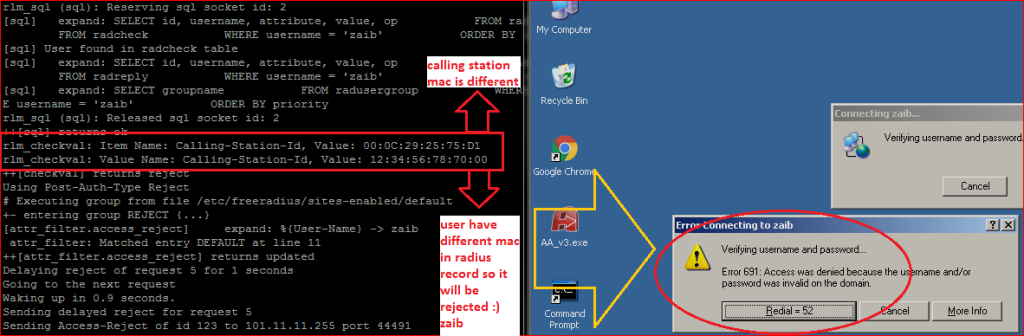
If user uses different station to connect with this ID he will be rejected as showed in the image below …

Add Static IP Address and Pool in radreply group.
To Assign user FIX IP Address, use following …
1
|
INSERT INTO radreply ( id , UserName , Attribute , op , Value ) VALUES (NULL , 'zaib', 'Framed-IP-Address', '=', '1.2.3.4');
|
To Assign user IP from POOL, use following …
1
|
INSERT INTO radreply ( id , UserName , Attribute , op , Value ) VALUES (NULL , 'zaib', 'Framed-Pool', '=', '512k-pool');
|
Adding Expiration Date for user
If you want to Expire the Account after XX days, you can use following
1
|
INSERT INTO radcheck ( id , UserName , Attribute , op , Value ) VALUES (NULL , 'zaib', 'Expiration', '=', '13 Mar 2016');
|
In above Example User will expires on
13th March, 2016 at 00:00 [Midnight].
If you want to
EXPIRE user at some other specific Time, use following format in time
1
|
INSERT INTO radcheck ( id , UserName , Attribute , op , Value ) VALUES (NULL , 'zaib', 'Expiration', '=', '13 Mar 2016 08:00');
|
ZAIB

GOT IT
Limit User Total Online time (Access by Period) Started from first login
If you want to start user online time (like in hours) but it should be calculated from first access, then use following.
edit the file
/etc/freeradius/sites-enabled/default
1
|
nano /etc/freeradius/sites-enabled/default
|
and add following under “
authorize {“ section
accessperiod
so that it may look like below …
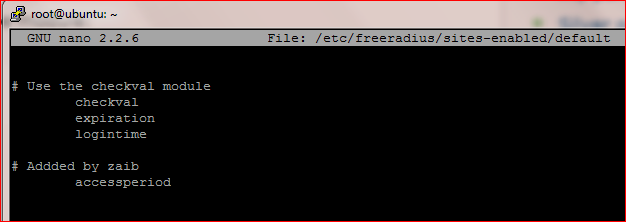
now edit file
/etc/freeradius/modules/sqlcounter_expire_on_login
1
|
nano /etc/freeradius/modules/sqlcounter_expire_on_login
|
and add following
1
2
3
4
5
6
7
8
|
sqlcounter accessperiod {
counter-name = Max-Access-Period-Time
check-name = Access-Period
sqlmod-inst = sql
key = User-Name
reset = never
query = "SELECT IF(COUNT(radacctid>=1),(UNIX_TIMESTAMP() - IFNULL(UNIX_TIMESTAMP(AcctStartTime),0)),0) FROM radacct WHERE UserName = '%{%k}' AND AcctSessionTime >= 1 ORDER BY AcctStartTime LIMIT 1"
}
|
now add user attribute in
radchceck table (Following is 1 hour Uptime limit example, and it will start after first login)
1
|
INSERT INTO radcheck ( id , UserName , Attribute , op , Value ) VALUES (NULL , 'zaib', 'Access-Period', '=', '3600');
|
Once the time period is over, user will be disconnected.
Limit User Total Online time , Example one hour, which can be used in parts as well.
If we want to allow user one hour which user can use in parts as
well, like ten minutes now, then next day he can use rest of his
available time. Use following
edit the file
/etc/freeradius/sites-enabled/default
1
|
nano /etc/freeradius/sites-enabled/default
|
and add following under “
authorize {“ section
Max-All-Session
now edit file
/etc/freeradius/modules/sqlcounter_expire_on_login
1
|
nano /etc/freeradius/modules/sqlcounter_expire_on_login
|
and add following
1
2
3
4
5
6
7
8
|
sqlcounter timelimit {
counter-name = Max-All-Session-Time
check-name = Max-All-Session
sqlmod-inst = sql
key = User-Name
reset = never
query = “SELECT SUM(AcctSessionTime) FROM radacct where UserName=’%{%k}'”
}
|
Save and Exit.
Now add user attribute in
radchceck table (Following is 1 hour Uptime limit example, which can be used in parts as well no first login applied here)
1
|
INSERT INTO radcheck ( id , UserName , Attribute , op , Value ) VALUES (NULL , 'zaib', 'Max-All-Session', '=', '3600');
|
QUOTA LIMIT FOR USER with CUSTOM MEANINGFUL REJECT REPLY MESSAGE
To limit user data volume limit (either daily, weekly or monthly) use below code.
edit the file
/etc/freeradius/sites-enabled/default
1
|
nano /etc/freeradius/sites-enabled/default
|
and add following under “
authorize {“ section
1
2
3
4
5
6
7
8
9
|
totalbytecounter{
reject = 1
}
if(reject){
update reply {
Reply-Message := "ZAIB-RADIUS-REPLY - You have reached your bandwidth limit"
}
reject
}
|
now edit file
/etc/freeradius/modules/sqlcounter_expire_on_login
1
|
nano /etc/freeradius/modules/sqlcounter_expire_on_login
|
and add following
1
2
3
4
5
6
7
8
9
|
sqlcounter totalbytecounter {
counter-name = Mikrotik-Total-Limit
check-name = Mikrotik-Total-Limit
reply-name = Mikrotik-Total-Limit
sqlmod-inst = sql
key = User-Name
reset = never
query = "SELECT ((SUM(AcctInputOctets)+SUM(AcctOutputOctets))) FROM radacct WHERE UserName='%{%k}'"
}
|
Save and Exit.
Now add user attribute in
radchceck table (Following is 1 MB total data limit example, which can be used in parts as well )
Note: Value is in bytes, so use it accordingly
1
|
INSERT INTO radcheck ( id , UserName , Attribute , op , Value ) VALUES (NULL , 'zaib', 'Mikrotik-Total-Limit', '=', '1000000');
|
Once the user quota over, he will get access deny message, and in radius log, you can see following
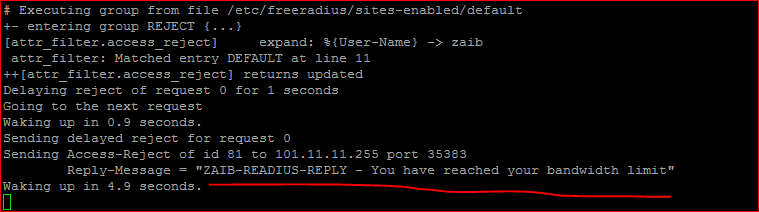
Note:
There is a
problem with above attribute. Radius will not AUTO disconnect user once
he reaches his limit. he will continue to use his account. he will only
be denied further login on his next login attempt.
Following is an workaround for it.
Make the following bash script. It will check for online users, and
will check if those users have quota limit using ‘Mikrotik-Total-Limit’
attribute. Then it will check there usage against quota limit. If it
will found above quota, it will simply disconnect users, else ignore.
You can add this script in crontab to run every X minutes.
1
2
3
4
5
6
7
8
9
10
11
12
13
14
15
16
17
18
19
20
21
22
23
24
25
26
27
28
29
30
31
32
33
34
35
36
37
38
39
40
41
42
43
44
45
46
47
48
49
50
51
52
53
54
55
56
57
58
59
60
61
62
63
64
65
66
67
|
#!/bin/bash
#set -x
# HEADER -----------
# SCRIPT to fetch data of active radius users into file, then check there quota limit against there usage.
# if quota is over , disconnect them.
# 17-MAR-2016
# Setting FILE Variables
TMPFILE="/tmp/activeusers"
FINALFILE="/tmp/finalfile"
radwho | awk '{print $2}' | sed '1d' > $TMPFILE
# if you fail to configure radwho, then use following
# mysql -uroot -pSQLPASS --skip-column-names -e "use radius; SELECT username FROM radacct WHERE acctstoptime IS NULL;" | cut -f1 -d/
# Mikrotik NAS Details
NAS="101.11.11.255"
NASPORT="1700"
SECRET="12345"
CURDATE=`date`
# MYSQL user credentials
SQLUSER="root"
SQLPASS="zaib1234"
# Apply Formula to get QUOTA limit data for each user in $FINALFILE (EXCLUDING USER WHO DONT HAVE ANY QUOTA LIMIT USING MIKROTIK-TOTAL-LIMIT ATTRIBUTE)
num=0
cat $TMPFILE | while read users
do
num=$[$num+1]
ACTIVEID=`echo $users | awk '{print $1}'`
mysql -u$SQLUSER -p$SQLPASS --skip-column-names -e "use radius; SELECT username,value FROM radcheck WHERE attribute='Mikrotik-Total-Limit' AND username='$ACTIVEID';" > $FINALFILE
done
# Apply Formula to get username and QUOTA LIMIT from $FINALFILE and check there usage againts assigned quota
num=0
cat $FINALFILE | while read users
do
num=$[$num+1]
username=`echo $users | awk '{print $1}'`
QLIMIT=`echo $users | awk '{print $2}'`
QUSED=`mysql -u$SQLUSER -p$SQLPASS --skip-column-names -e "use radius; SELECT ((SUM(AcctInputOctets)+SUM(AcctOutputOctets))) FROM radacct WHERE UserName='$username'"`
# PRINT GENERAL INFO
echo "------ $CURDATE"
echo "$username QUOTA LIMIT= $QLIMIT"
echo "$username QUOTA USED= $QUSED"
if [ $QUSED -gt $QLIMIT ]
then
echo "QUOTA REACHED! Disconnecting $username from NAS $NAS"
echo user-name=$username | radclient -x $NAS:$NASPORT disconnect $SECRET
# ELSE JUST SHOW USER USED DATA WHICH IS IN LIMIT AT A MOMENT / zaib
else
echo "$username quote is under Limit"
echo "------"
fi
done
> $TMPFILE
> $FINALFILE
# SCRIPT END / Syed Jahanzaib
|
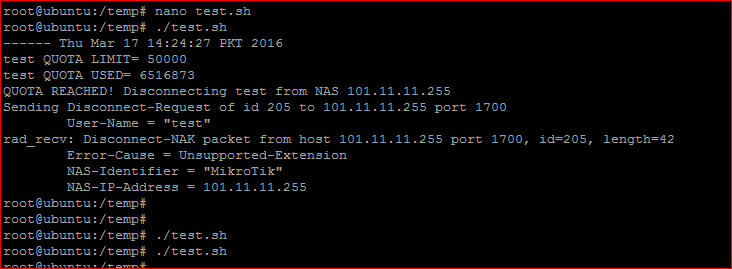
Allah Shuker
BANDWIDTH CHANGE ON THE FLY – CHANGE OF AUTHORITY (COA) _for pppoe_
To change bandwidth speed for already connected users ON THE FLY , means without disconnecting him. Use following code. Its well tested with Freeradius 2.x and Mikrotik 6.34.2
Change the User Name / Rate Limit/ Mikrotik IP and PORT/SECRET as per network.
1
|
echo User-Name := "zaib", Mikrotik-Rate-Limit = 512k/512k | radclient -x 101.11.11.255:1700 coa 12345
|
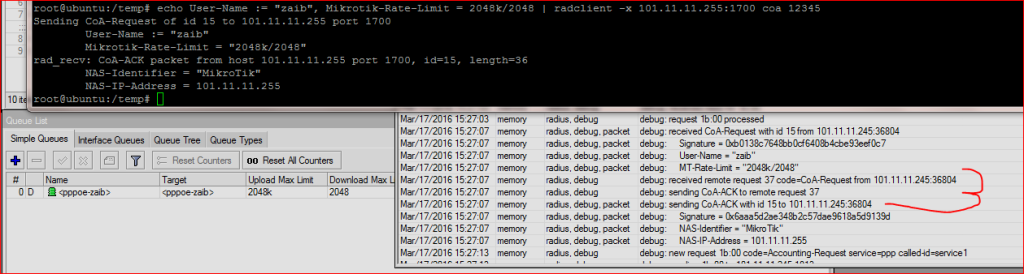
CHANGE BANDWIDTH PACKAGE TO LOWER AFTER DAILY QUOTA REACH
If you want to enforce
FUP (fair usage policy) like if 1mb speed allowed user consumed X MB in a day, then his bandwidth package should
DROP to lower speed, e.g: 512k for that day.
Add the
COUNTER for daily counting
nano /etc/freeradius/modules/sqlcounter_expire_on_login
1
2
3
4
5
6
7
8
|
counter-name = Mikrotik-Total-Limit
check-name = Mikrotik-Total-Limit
reply-name = Mikrotik-Total-Limit
sqlmod-inst = sql
key = User-Name
reset = daily
query = "SELECT SUM(AcctInputOctets)+SUM(AcctOutputOctets) FROM radacct WHERE UserName='%{%k}'"
}
|
Now add the action for the above counter in sites-available (or enable) file
nano /etc/freeradius/sites-available/default
1
2
3
4
5
6
7
8
9
10
|
dailyquota {
reject = 1
}
if (reject) {
ok
update reply {
Mikrotik-Rate-Limit := "512k/512k"
Reply-Message := "You have reached your transfer limit. Limited bandwidth"
}
}
|
Get Online User Names
1
|
mysql -uroot -pSQLPASS --skip-column-names -e "use radius; SELECT username FROM radacct WHERE acctstoptime IS NULL;" | cut -f1 -d/ | sort | uniq -d
|
Regard’s
Syed Jahanzaib




Sent from Yahoo Mail on Android
Comment by surambili — March 11, 2016 @ 3:45 PM
Comment by Abid Ali — March 11, 2016 @ 6:03 PM
Comment by Javed Hussain — March 12, 2016 @ 6:02 PM
Comment by DP — March 25, 2016 @ 6:34 AM
Comment by Syed Jahanzaib / Pinochio~:) — March 26, 2016 @ 4:58 PM
Pingback by Mikrotik with Freeradius/mySQL – Change on the FLY with COA # Part-2 | Syed Jahanzaib Personal Blog to Share Knowledge ! — March 25, 2016 @ 4:58 PM
Pingback by Mikrotik with Freeradius/mySQL – Change IP Pool After Expiration # Part-3 | Syed Jahanzaib Personal Blog to Share Knowledge ! — March 28, 2016 @ 4:19 PM
Comment by HM — June 20, 2016 @ 4:34 PM
I want to know if that I want to achieve it’s possible using freeradius, if you can help me.
I’m using freeradius to validate users in captive portal to give to our clients free Internet access, but we ask to the clients an valid email. I developed a php page that send an email with a link and validate whan that user click the link.
What I need to do with the freeradius server is give access to the clients when they complete the form to give them the opportunity to reach their mail service to click the link. If in the first hour they don’t confirm the email address i want to drop the connection.
I planned to give to the users 15 days of internet access and if they don’t confirm the email in the first hour then drop the connection.
But when the fortigate stablish the connectio takes the max connection time from radius and I don’t know how to modify to reduce it and send a Coa disconnect when the user reach the expire time. I don’t understand how radius trigger the coa messages. I saw your examples with the sql querys but I don’t know exactly how radius use it to triiger the disconnect message.
Thanks in advance.
Comment by miquelangeld — August 11, 2016 @ 2:57 PM
Comment by miquelangeld — August 11, 2016 @ 2:59 PM
Comment by Danish — August 29, 2016 @ 2:02 PM
Comment by siddhartha — September 6, 2016 @ 6:15 PM
Comment by Syed Jahanzaib / Pinochio~:) — September 18, 2016 @ 4:11 PM
How can I reach you to get more help?
Comment by Arif — September 27, 2016 @ 9:49 AM
Comment by Syed Jahanzaib / Pinochio~:) — September 27, 2016 @ 11:06 AM